
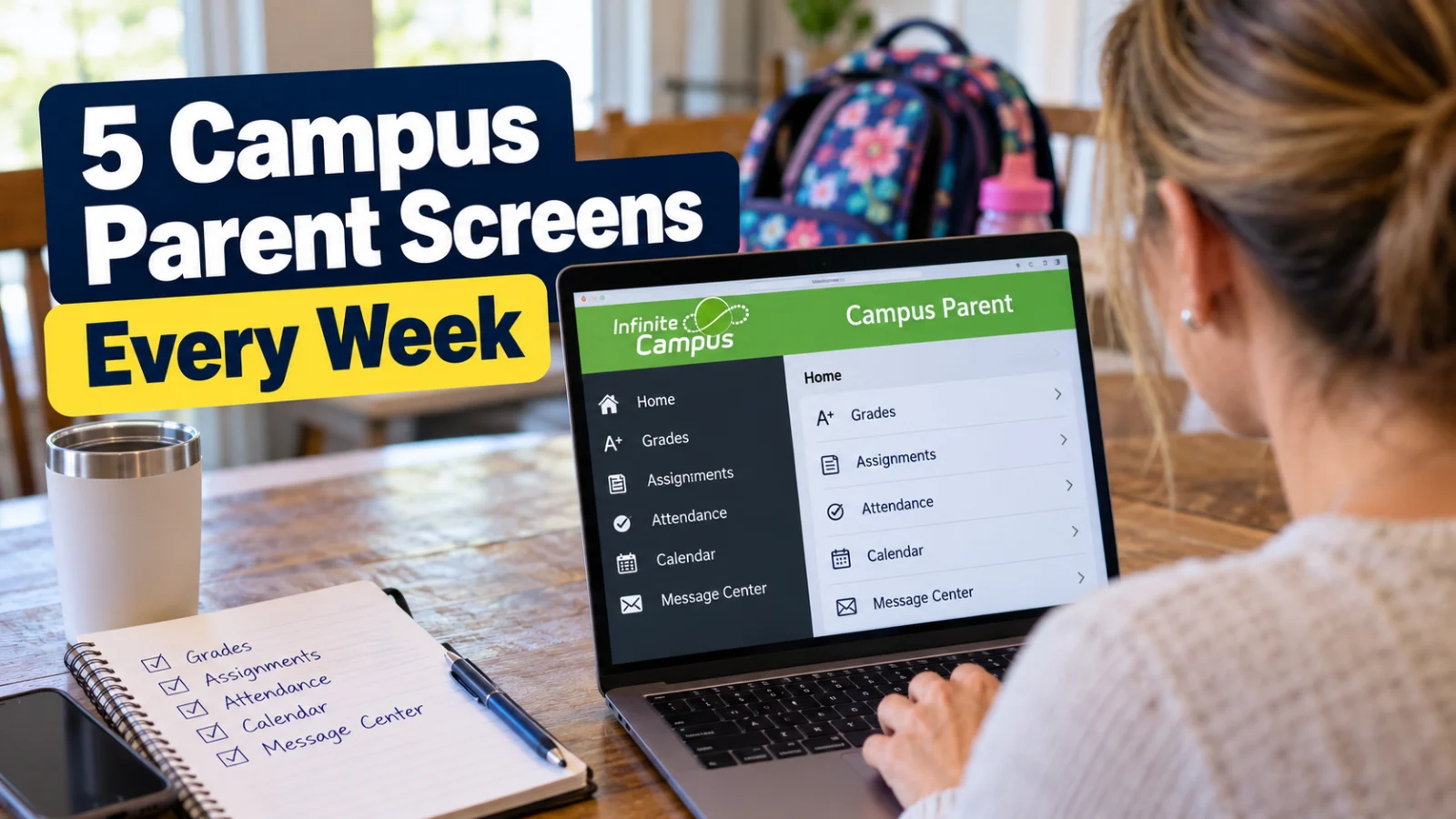
Five Campus Parent screens to check every week: Grades, Assignments, Attendance, Calendar, and Message Center. Locked out? Portal Help Desk: 702 799 7678.
Campus Parent is the Clark County School District parent portal for monitoring a student's school day record in Infinite Campus. You log in at campusportal.ccsd.net (which redirects to the live campus.ccsd.net/campus/portal login) or in the Campus Parent mobile app. The screen names below come from the district Campus Parent/Student Portal and Mobile App Manual (January 2024), linked from the district Infinite Campus parents page.
Campus Parent is not ParentLink. Back to School calls ParentLink CCSD's primary communication tool, reaching parents by phone call, text, and email. Campus Parent is where you go to look things up yourself: grades, assignments, attendance, schedules, and messages from teachers or school staff.
How do I activate or log into Campus Parent?
Returning families use the Campus Parent account the school already created.
If you do not have an account, contact the Campus Liaison at your child's school. The September 2026 Campus Parent How to Access PDF says the Liaison creates the Campus Parent account, then you sign in at https://campus.ccsd.net/campus/portal or in the mobile app, select Campus Parent, enter the Parent Username and Password, and complete any prompts to change the password and add an Account Security Email. Add that security email. Without it, Forgot Username and Forgot Password will not work, and you will need your school's Campus Liaison, per the district FAQ.
On the web, the Visit Campus Parent/Student button on the Infinite Campus parents page opens campusportal.ccsd.net, which takes you to the same campus.ccsd.net login listed in the how to access PDF. Bookmark https://campus.ccsd.net/campus/portal.
For the free Campus Parent app (iOS or Android), the Manual says: download the app, enter CCSD as the District Name, choose Nevada, Search District, then select Clark County.
For technical help, the district Infinite Campus parents page says to start with the Campus Liaison at your child's school during school hours. You can also call the Portal Help Desk at 702 799 7678 (702 799 PORT), Monday through Friday, 6:00 a.m. to 5:00 p.m. Pacific, per that page. For email, use portalsupport@nv.ccsd.net, listed in the September 2026 How to Access PDF.
What are the five Campus Parent screens to check each week?
1. Grades
Grades shows the student's grades for tasks such as semester grades and standards. A term GPA may display. Select the term, then the course. Posted grades appear in bold. Grades that are not posted show as in progress. Open a course to see its scored assignments. For the grading scale or rubric, open Grades, then Detail, and select Information.
2. Assignments
Assignments lists student assignments with a focus on the current day. Use the Missing or Current Term filter to see missing work or the full term list. Pair this with Grade Book Updates when you want only what was scored or updated in the last fourteen days. Assignments there may be flagged Turned In, Late, or Missing.
3. Attendance
Attendance lists absences and tardies for the selected term. Select the quarter or term, then the course or homeroom for detail. Absences and tardies are separated by type, such as Excused or Exempt, per the Manual. If a mark looks wrong, contact your child's school.
4. Calendar
Calendar runs in three modes: Assignments, Schedule, and Attendance. A black dot marks a day with an assignment or attendance mark. Pick a mode, pick a date, then open the assignment or course. For a week of assignments, open Assignments, then select Calendar.
Schedule is also its own tool. It shows the student's schedule by term, including Course Info, Curriculum, Grades, and Upcoming Assignments. Day rotations appear in Course Info. Use Calendar to check a specific day. Use Schedule when you need the full course list for a term.
5. Message Center
Message Center holds school and district announcements, Inbox messages, and surveys. Announcements can also appear on the login screen. Inbox shows messages from teachers or school staff. A survey link appears next to Inbox when one is assigned. The district FAQ says important announcements such as events and school closings post on the login page or Message Center.
Fees is a separate tool for viewing and paying balances, not one of the five weekly screens above. Check Fees when Home shows an unpaid balance, or when you know a fee is due. Home can also surface Grade Updates, Attendance Updates, immunizations that need attention, and graduation progress for secondary students.
What else should parents know before they rely on the portal alone?
If you have more than one child, select the student from the list in the upper right when you open a student specific tool such as Assignments. Students enrolled at more than one school get an enrollment list. Contact Preferences under Settings control your contact information, preferred language, and message preferences such as Attendance, Teacher, and Behavior Messenger. Notification Settings control in app and mobile push alerts. Mobile users must select Stay logged in to receive mobile push notifications, per the Manual.
Questions about grades or progress go to your child's teacher or school counselor, per the district Campus Parent/Student FAQs. Login trouble goes to the Campus Liaison first, then the Portal Help Desk during help desk hours.
For classwork itself, the CCSD StuTech Applications page names Canvas as the district's Learning Management System for delivering instruction and resources, and says parents can create a Canvas parent account at canvas.ccsd.net. Look in Canvas for the lessons and resources, and in Campus Parent for the record of scores and attendance.
Bookmark the Infinite Campus parents page for the Manual, FAQs, Account Security Email guide, and how to access PDFs.