Forgot Password only works if you confirmed an Account Security Email, and that address is not the one CCSD uses to contact you.
Most Campus Parent lockouts in Clark County School District come back to one setting: the Account Security Email. CCSD's March 2026 Account Security Email and Password sheet says that address is used "strictly for retrieving a username" or resetting a parent password, and that you must confirm it before the Forgot Username or Forgot Password links will work. The sheet, the June 2026 Campus Mobile App FAQs, and the other guides on the district's Infinite Campus parents page were checked Tuesday, October 13, 2026.
No account yet, or the app can't find CCSD
Parents can't sign themselves up. The September 2026 How to Access a Campus Parent Account sheet says "Campus Parent accounts are created by the Campus Liaison," so the first step is contacting your child's school for a username and password. The Campus Parent/Student FAQs say parents and guardians of students from pre kindergarten through grade 12 are eligible for their own accounts, and every platform uses the login the Liaison provides.
The first login then walks you through a few steps, per the sheet:
Go to campus.ccsd.net/campus/portal or open the app, and choose Campus Parent.
Enter the username and password from the school. You can check Stay logged in so the app doesn't ask every time.
Change the password and add an Account Security Email when prompted.
Open the email Infinite Campus sends to that address and validate it.
Step 4 matters later: the Account Security Email sheet says the Forgot Username and Forgot Password links work only after that address is confirmed.
If the app can't find the district, the sheet's setup is: download Campus Parent from the Apple App Store or Google Play Store, enter CCSD as the District Name, choose Nevada, select Search District, then select Clark County.
Forgot the password or username
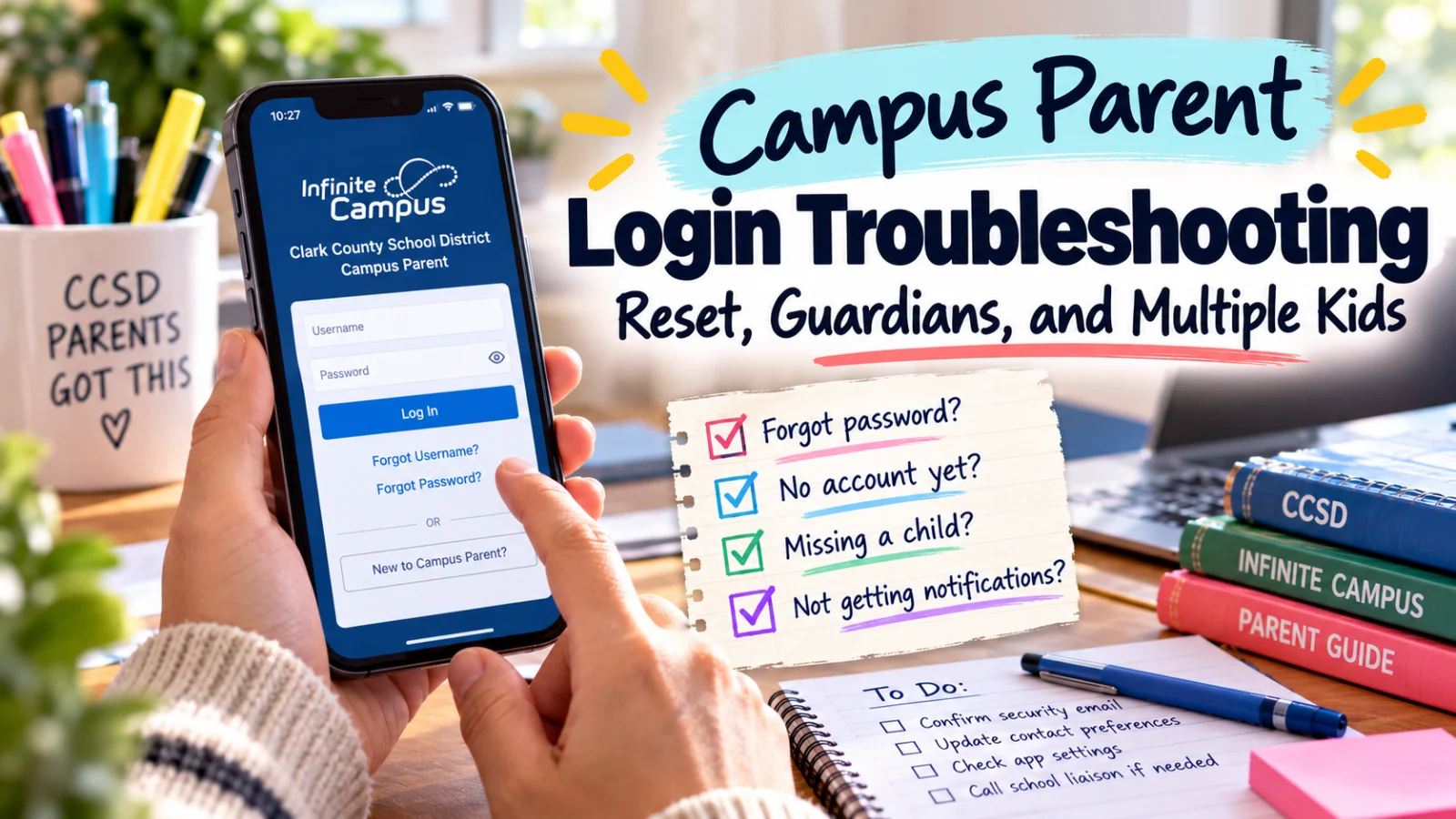
On the login page at campus.ccsd.net/campus/portal or in the app, Forgot Username asks for the Account Security Email. Forgot Password asks for your username. Either way, the reset goes to the security email.
If the email never arrives, the mobile FAQ says to see your school's Campus Liaison "in person to reset their password." The same applies if you never set up a security email.
Once you are back in, add or confirm the address under User Menu, then Settings, then Account Settings, then Account Security Email. CCSD sends a verification email, and there is a Resend Verification Email button if it does not show up.
One trap the district flags twice: setting the Account Security Email "does not set the contact email found in the Contact Preferences tool." School messages go to the contact email. Update both if you changed addresses.
Is the system down?
The FAQs say the portal is available around the clock, but "On occasion, the system may be down for maintenance," and those dates and times are posted on the login page. Important announcements, such as school closings, also appear on the login page or in the Message Center. Check the login page before you assume the problem is your account.
"Incorrect Username/Password"
The mobile FAQ gives two causes: the username or password is wrong, or the Campus Parent account is disabled. A disabled account is a school side fix, so that is a Liaison call.
Several failed tries in a row bring up a CAPTCHA rather than locking you out, per the district's Campus Parent/Student FAQs. If you think someone else has your login, the same FAQs say to change your password in Account Settings right away, and note that every login attempt is recorded and can be reviewed in the Campus Parent Access Log.
Your child's login is a different account. Students reset their own password or look up their CCSD Standard User ID at myaccount.ccsd.net. A parent cannot reset a student password from Campus Parent.
Why do I only see Settings after I log in?
That screen means the account works but is not tied to any student. The mobile FAQ says a user "must be a student or have guardianship rights assigned to the student within Infinite Campus" to see student data, and points families to the Campus Liaison "to verify household relationships."
Two households, one student
The FAQs say parents and guardians are eligible for individual accounts, so two households do not have to share a password. The catch is forms. The district's Campus Parent/Student Portal and Mobile App Manual says only one guardian can complete a Documents form at a time, and once one guardian declines a form, no other guardian can sign it. Our Campus Parent documents guide covers that in detail.
Home address changes are not something you can make in the portal. The manual says they are "processed at the student's school," though you can update the household phone number under More, then Address Information.
More than one child
The manual says to switch between children by picking a student "from the list in the upper right corner," and that the list only appears once you open a student specific tool, such as Assignments. If a child is missing from the list, that is the guardianship link again, not a second account.
A student enrolled at two schools gets an enrollment list, and some tools split the information by school on one screen.
The data looks wrong or disappeared
Check the term first. The app can show current, past, or all terms, and an old term looks like missing grades.
Schools can also switch off the Grades or Schedules tools "at specific times of the year," the FAQ says, naming summer and the end of a grading period. The second grading period ends Friday, December 18, 2026, on the student calendar, so a blank Grades screen that week may be on purpose.
If the app keeps crashing, the FAQ's steps are uninstall, power the phone off and on, then reinstall. Duplicate notifications can happen when a teacher enters several scores at the same time, per the FAQ.
Not getting notifications
The June 2026 mobile FAQ lists two switches, and both have to be on.
Phone settings. On an iPhone or iPad, open Settings, then Notifications, pick the Campus Parent app, Campus Parent notifications, Campus Parent account setup, and turn on Allow Notifications. On Android, open Settings, then Notifications, then App notifications, and allow Campus Parent.
App settings. In Campus Parent, select User Settings in the upper right corner, then Settings, then Notification Settings, and choose which types of updates you want.
School emails and texts are a separate setting. Those go to the contact email and phone in Contact Preferences, which the FAQs say you can update under User Menu, then Settings, then Contact Preferences, or through the Campus Liaison.
Can I use it in Spanish?
Yes. The FAQs say Campus Parent is available in English, Spanish, and Chinese.
Who fixes what
Your school's Campus Liaison, during school hours: new accounts (Campus Liaisons create every parent account), disabled accounts, resets without a security email, missing children, household and guardian links.
Portal Help Desk for basic help: 702 799 7678 or portalsupport@nv.ccsd.net, per the September 2026 How to Access sheet.
Questions about grades or progress go to your child's teacher or school counselor, the FAQs say, not the Help Desk.
For what to check once you are in, see the five Campus Parent screens.